部署与运维
Enable queue mode
You can run n8n in different modes depending on your needs. The queue mode provides the best scalability.
How it works
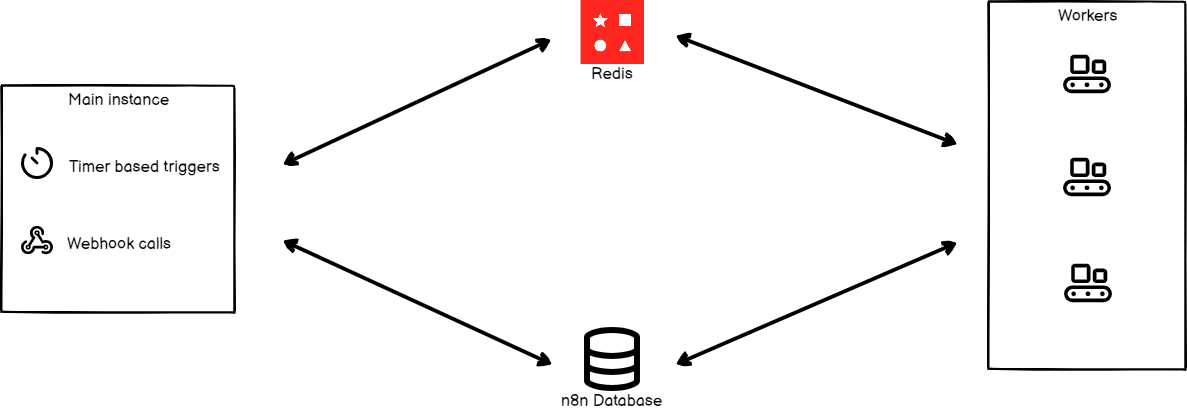
When running in queue mode, you have multiple n8n instances set up, with one main instance receiving workflow information (such as triggers) and the worker instances performing the executions.
Each worker is its own Node.js instance, running in main mode, but able to handle multiple simultaneous workflow executions due to their high IOPS (input-output operations per second).
By using worker instances and running in queue mode, you can scale n8n up (by adding workers) and down (by removing workers) as needed to handle the workload.
This is the process flow:
- The main n8n instance handles timers and webhook calls, generating (but not running) a workflow execution.
- It passes the execution ID to a message broker, Redis, which maintains the queue of pending executions and allows the next available worker to pick them up.
- A worker in the pool picks up message from Redis.
- The worker uses the execution ID to get workflow information from the database.
- After completing the workflow execution, the worker:
- Writes the results to the database.
- Posts to Redis, saying that the execution has finished.
- Redis notifies the main instance.
Configuring workers
Workers are n8n instances that do the actual work. They receive information from the main n8n process about the workflows that have to get executed, execute the workflows, and update the status after each execution is complete.
Set encryption key
n8n automatically generates an encryption key upon first startup. You can also provide your own custom key using environment variable if desired.
The encryption key of the main n8n instance must be shared with all worker and webhooks processor nodes to ensure these worker nodes are able to access credentials stored in the database.
Set the encryption key for each worker node in a configuration file or by setting the corresponding environment variable:
export N8N_ENCRYPTION_KEY=<main_instance_encryption_key>Set executions mode
Set the environment variable EXECUTIONS_MODE to queue on the main instance and any workers using the following command.
export EXECUTIONS_MODE=queueAlternatively, you can set executions.mode to queue in the configuration file.
Start Redis
To run Redis in a Docker container, follow the instructions below:
Run the following command to start a Redis instance:
docker run --name some-redis -p 6379:6379 -d redisBy default, Redis runs on localhost on port 6379 with no password. Based on your Redis configuration, set the following configurations for the main n8n process. These will allow n8n to interact with Redis.
| Using configuration file | Using environment variables | Description |
|---|---|---|
queue.bull.redis.host:localhost |
QUEUE_BULL_REDIS_HOST=localhost |
By default, Redis runs on localhost. |
queue.bull.redis.port:6379 |
QUEUE_BULL_REDIS_PORT=6379 |
The default port is 6379. If Redis is running on a different port, configure the value. |
You can also set the following optional configurations:
| Using configuration file | Using environment variables | Description |
|---|---|---|
queue.bull.redis.username:USERNAME |
QUEUE_BULL_REDIS_USERNAME |
By default, Redis doesn't require a username. If you're using a specific user, configure it variable. |
queue.bull.redis.password:PASSWORD |
QUEUE_BULL_REDIS_PASSWORD |
By default, Redis doesn't require a password. If you're using a password, configure it variable. |
queue.bull.redis.db:0 |
QUEUE_BULL_REDIS_DB |
The default value is 0. If you change this value, update the configuration. |
queue.bull.redis.timeoutThreshold:10000ms |
QUEUE_BULL_REDIS_TIMEOUT_THRESHOLD |
Tells n8n how long it should wait if Redis is unavailable before exiting. The default value is 10000 (ms). |
queue.bull.gracefulShutdownTimeout:30 |
N8N_GRACEFUL_SHUTDOWN_TIMEOUT |
A graceful shutdown timeout for workers to finish executing jobs before terminating the process. The default value is 30 seconds. |
Now you can start your n8n instance and it will connect to your Redis instance.
Start workers
You will need to start worker processes to allow n8n to execute workflows. If you want to host workers on a separate machine, install n8n on the machine and make sure that it's connected to your Redis instance and the n8n database.
Start worker processes by running the following command from the root directory:
./packages/cli/bin/n8n workerIf you're using Docker, use the following command:
docker run --name n8n-queue -p 5679:5678 docker.n8n.io/n8nio/n8n workerYou can set up multiple worker processes. Make sure that all the worker processes have access to Redis and the n8n database.
Worker server
Each worker process runs a server that exposes optional endpoints:
/healthz: returns whether the worker is up, if you enable theQUEUE_HEALTH_CHECK_ACTIVEenvironment variable/healthz/readiness: returns whether worker's DB and Redis connections are ready, if you enable theQUEUE_HEALTH_CHECK_ACTIVEenvironment variable- credentials overwrite endpoint
/metrics
View running workers
You can view running workers and their performance metrics in n8n by selecting Settings > Workers.
Running n8n with queues
When running n8n with queues, all the production workflow executions get processed by worker processes. For webhooks, this means the HTTP request is received by the main/webhook process, but the actual workflow execution is passed to a worker, which can add some overhead and latency.
Redis acts as the message broker, and the database persists data, so access to both is required. Running a distributed system with this setup over SQLite isn't supported.
Webhook processors
Webhook processors are another layer of scaling in n8n. Configuring the webhook processor is optional, and allows you to scale the incoming webhook requests.
This method allows n8n to process a huge number of parallel requests. All you have to do is add more webhook processes and workers accordingly. The webhook process will listen to requests on the same port (default: 5678). Run these processes in containers or separate machines, and have a load balancing system to route requests accordingly.
n8n doesn't recommend adding the main process to the load balancer pool. If you add the main process to the pool, it will receive requests and possibly a heavy load. This will result in degraded performance for editing, viewing, and interacting with the n8n UI.
You can start the webhook processor by executing the following command from the root directory:
./packages/cli/bin/n8n webhookIf you're using Docker, use the following command:
docker run --name n8n-queue -p 5679:5678 -e "EXECUTIONS_MODE=queue" docker.n8n.io/n8nio/n8n webhookConfigure webhook URL
To configure your webhook URL, execute the following command on the machine running the main n8n instance:
export WEBHOOK_URL=https://your-webhook-url.comYou can also set this value in the configuration file.
Configure load balancer
When using multiple webhook processes you will need a load balancer to route requests. If you are using the same domain name for your n8n instance and the webhooks, you can set up your load balancer to route requests as follows:
- Redirect webhook triggers to the webhook servers pool. Paths to consider:
/webhook/*: Webhook trigger node endpoints/webhook-waiting/*: Human-in-the-loop webhook endpoints used by nodes that perform "send and wait" operations (for example, the Slack node).- All other paths (the n8n internal API, the static files for the editor, etc.) should get routed to the main process
Note: The default URL for manual workflow executions is /webhook-test/*. Make sure that these URLs route to your main process.
You can change this path in the configuration file endpoints.webhook or using the N8N_ENDPOINT_WEBHOOK environment variable. If you change these, update your load balancer accordingly.
Disable webhook processing in the main process (optional)
You have webhook processors to execute the workflows. You can disable the webhook processing in the main process. This will make sure to execute all webhook executions in the webhook processors. In the configuration file set endpoints.disableProductionWebhooksOnMainProcess to true so that n8n doesn't process webhook requests on the main process.
Alternatively, you can use the following command:
export N8N_DISABLE_PRODUCTION_MAIN_PROCESS=trueWhen disabling the webhook process in the main process, run the main process and don't add it to the load balancer's webhook pool.
Configure worker concurrency
You can define the number of jobs a worker can run in parallel by using the concurrency flag. It defaults to 10. To change it:
n8n worker --concurrency=5Concurrency and scaling recommendations
n8n recommends setting concurrency to 5 or higher for your worker instances. Setting low concurrency values with a large numbers of workers can exhaust your database's connection pool, leading to processing delays and failures.
Multi-main setup
In queue mode you can run more than one main process for high availability.
In a single-mode setup, the main process does two sets of tasks:
- regular tasks, such as running the API, serving the UI, and listening for webhooks, and
- at-most-once tasks, such as running non-HTTP triggers (timers, pollers, and persistent connections like RabbitMQ and IMAP), and pruning executions and binary data.
In a multi-main setup, there are two kinds of main processes:
- followers, which run regular tasks, and
- the leader, which runs both regular and at-most-once tasks.
Leader designation
In a multi-main setup, all main instances handle the leadership process transparently to users. In case the current leader becomes unavailable, for example because it crashed or its event loop became too busy, other followers can take over. If the previous leader becomes responsive again, it becomes a follower.
Configuring multi-main setup
To deploy n8n in multi-main setup, ensure:
- All
mainprocesses are running in queue mode and are connected to Postgres and Redis. - All
mainandworkerprocesses are running the same version of n8n. - All
mainprocesses have set the environment variableN8N_MULTI_MAIN_SETUP_ENABLEDtotrue. - All
mainprocesses are running behind a load balancer with session persistence (sticky sessions) enabled.
If needed, you can adjust the leader key options:
| Using configuration file | Using environment variables | Description |
|---|---|---|
multiMainSetup.ttl:10 |
N8N_MULTI_MAIN_SETUP_KEY_TTL=10 |
Time to live (in seconds) for leader key in multi-main setup. |
multiMainSetup.interval:3 |
N8N_MULTI_MAIN_SETUP_CHECK_INTERVAL=3 |
Interval (in seconds) for leader check in multi-main setup. |
官方原文和授权
本页来自 N8N 英文官方网站固定快照,并转换成 xueai 静态页面。内容以 N8N 持续更新的官方页面为准。