构建工作流
Add notes and documentation
Sticky Notes allow you to annotate and comment on your workflows.
n8n recommends using Sticky Notes heavily, especially on template workflows1, to help other users understand your workflow.
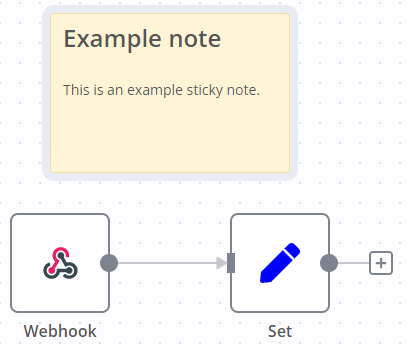
Create a Sticky Note
Sticky Notes are a core node. To add a new Sticky Note:
- Open the nodes panel.
- Search for
note. - Click the Sticky Note node. n8n adds a new Sticky Note to the canvas.
Edit a Sticky Note
- Double click the Sticky Note you want to edit.
- Write your note. This guide explains how to format your text with Markdown. n8n uses markdown-it, which implements the CommonMark specification.
- Click away from the note, or press
Esc, to stop editing.
Change the color
To change the Sticky Note color:
- Hover over the Sticky Note
- Select Change color

- Choose from seven preset colors, or click the rainbow gradient button to select a custom color
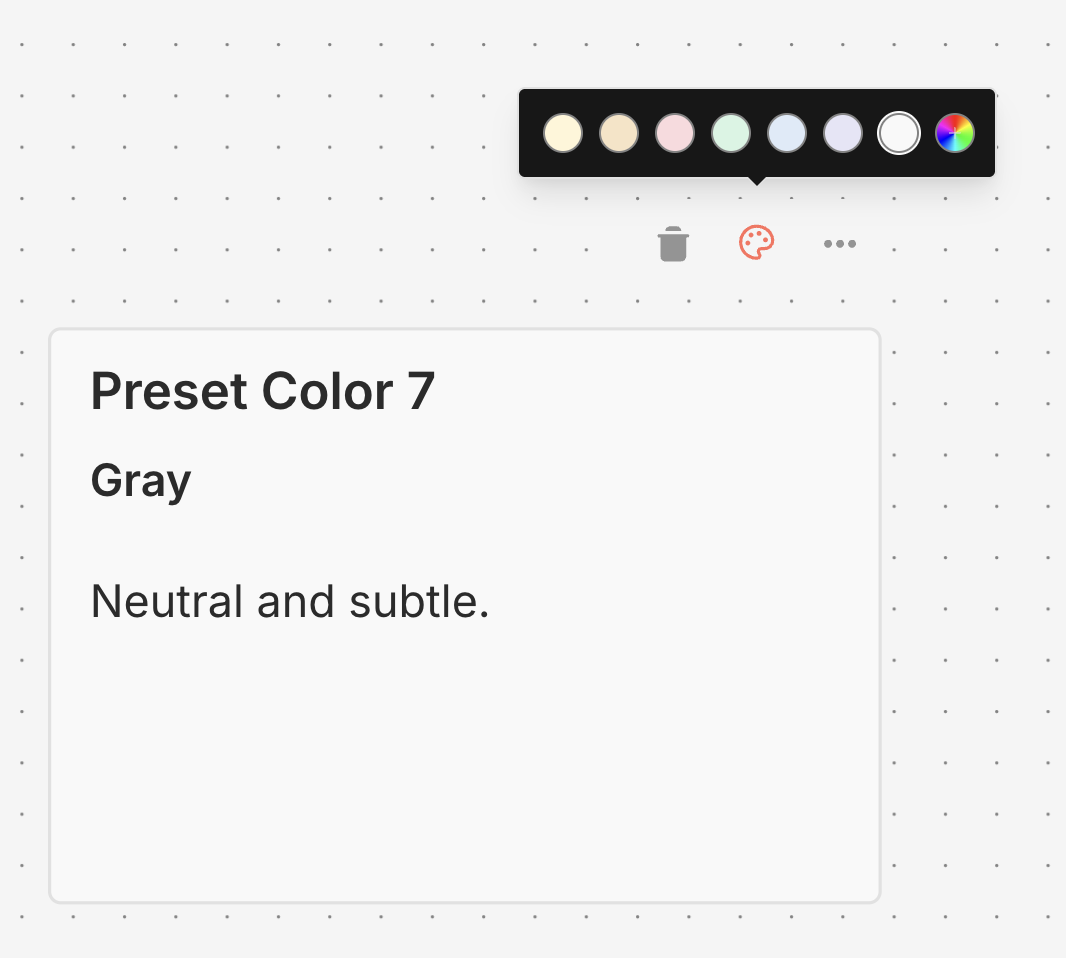
Custom colors
In addition to the seven preset colors, you can select any custom color for your sticky notes:
- Click the button with the rainbow gradient and plus icon
- Use the color picker to select your desired color, or enter a hex color code (for example,
#FF5733) - Click Apply to set the color
Your recently used custom colors (up to 8) are automatically saved and displayed in the color picker for quick access.
Custom colors feature theme-aware borders that automatically adjust for optimal visibility in both light and dark modes.
Sticky Note positioning
You can:
- Drag a Sticky Note anywhere on the canvas.
- Drag Sticky Notes behind nodes. You can use this to visually group nodes.
- Resize Sticky Notes by hovering over the edge of the note and dragging to resize.
- Change the color: select Options

to open the color selector.
Writing in Markdown
Sticky Notes support Markdown formatting. This section describes some common options.
The text in double asterisks will be **bold**

The text in single asterisks will be *italic*

Use # to indicate headings:
# This is a top-level heading
## This is a sub-heading
### This is a smaller sub-heading

You can add links:
[Example](https://example.com/)

Create lists with asterisks:

* Item one
* Item two

Or created ordered lists with numbers:

1. Item one
2. Item two
For a more detailed guide, refer to CommonMark's help. n8n uses markdown-it, which implements the CommonMark specification.
Make images full width
You can force images to be 100% width of the sticky note by appending #full-width to the filename:
Embed a YouTube video
To display a YouTube video in a note, use the @[youtube](<video-id>) directive with the video's ID. For this to work, the video's creator must allow embedding.
For example:
@[youtube](ZCuL2e4zC_4)To embed your own video, copy the above syntax, replacing ZCuL2e4zC_4 with your video ID. The YouTube video ID is the string that follows v= in the YouTube URL.
Footnotes
- Back
n8n templates are pre-built workflows designed by n8n and community members that you can import into your n8n instance. When using templates, you may need to fill in credentials and adjust the configuration to suit your needs.
官方原文和授权
本页来自 N8N 英文官方网站固定快照,并转换成 xueai 静态页面。内容以 N8N 持续更新的官方页面为准。